

Getting your Vacations Show Off Ready
Piqt 1.1 finds your trips and events, lets you filter the whole app to one with the Lens, and helps you cut a trip down to an album worth showing off.
I love to travel and I love vacations. It’s one of the few times the family and I can fully disconnect from our day to day and experience something new together. I also love to take pictures when I travel. Being able to capture the good times and revisit them over the years is a great way to get energized for the next trip. However, the one thing I hate about vacation photos is curating them.
Every time I return from a trip I intend to sit down and spend the time to weed through the vacation pics and chop them down to the keepers and the highlights that I can show to my friends when they ask about my trip. I never do it. It always takes so long and is pretty darn tedious. When I built Piqt, one of my top priorities was to improve exactly this case. The first version of Piqt helped, but was always library-wide, so I next set my sights on a more focused event curation and I’m launching it today in Piqt version 1.1.
You can go try it today and hopefully it just makes total sense the first time. If you’d like the walkthrough first, here’s how it works.
Detecting Your Events
The first part of the process is finding your trips and events. In order to make that easier, Piqt does it for you. The app looks at your usual photo / video taking habits and can identify when those habits change. Anything that looks like a significant change is tagged as an event.
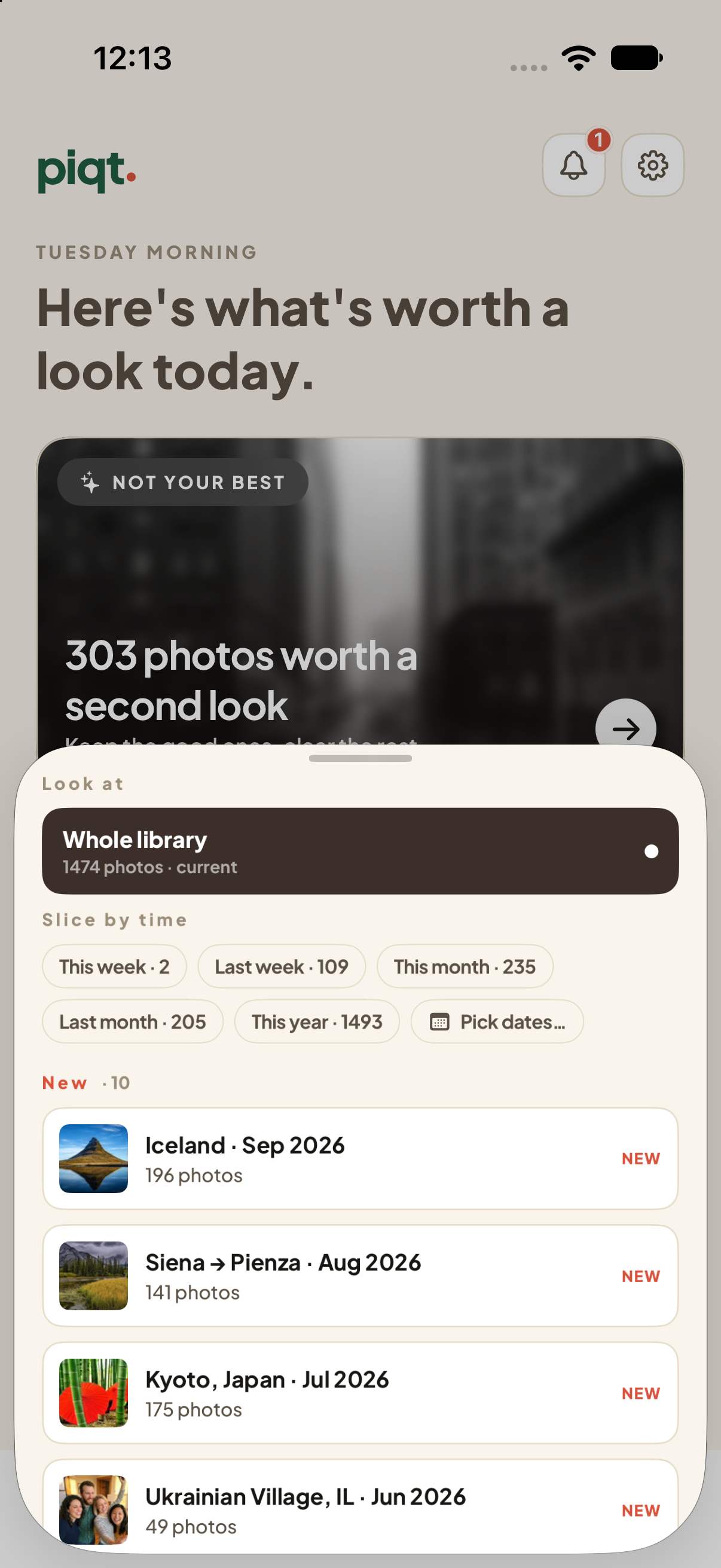
The Lens, with detected events
It’s pretty good at finding your trips and even good at finding the non-trips. Next to my vacations, events also found the week that I was listing a bunch of things on eBay and took tons of pictures and the time I took a bunch of pictures of my car from hail damage. Not necessarily the albums I want to show off, but it’s nice to dig up those bursts and either delete them all (I don’t need the pictures from my old eBay listings) or file them away (I may want to keep those hail damage pictures a little longer).
Piqt can also find clusters within events, called Moments. Think about the time you went to Paris and spent a day in the Louvre. Moments detect changes in the location data on the photos and can detect that you may be doing something new, so you can curate that part a little differently. It still lives in the trip, but is a nice shorthand for you to mark the bigger moments in an event.
Using the Lens
You may have noticed there’s a new element to the Piqt dashboard, anchored to the bottom, called the Lens. The Lens is a way that you can filter the whole app down to an event or stretch of time. Want to just look at the last month? Want to just review your last trip to NYC? The Lens is where you do that.
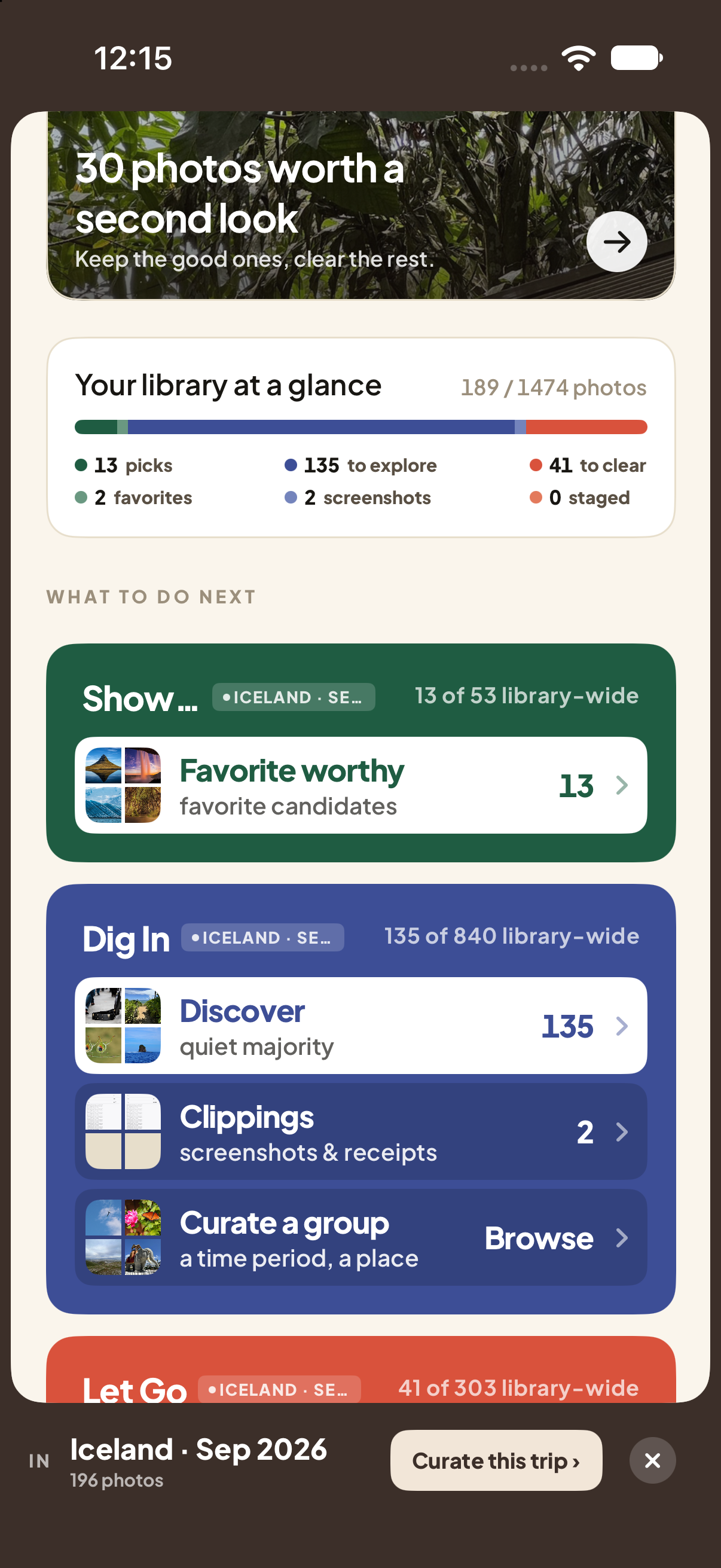
The Lens-filtered dashboard/p>
Once you have the Lens selected, a frame is wrapped around the whole dashboard and you can use the usual workflows, but filtered down to the Lens. At any point you can back out simply by tapping the × on the Lens.
Event-wide Curation
The dashboard gives you lots of options to just look at the best from your event, or remove the dupes. However, that scenario above, where you want to quickly chop down that last trip to a usable album, would require a lot of jumping around. That’s why Piqt has added event curation.
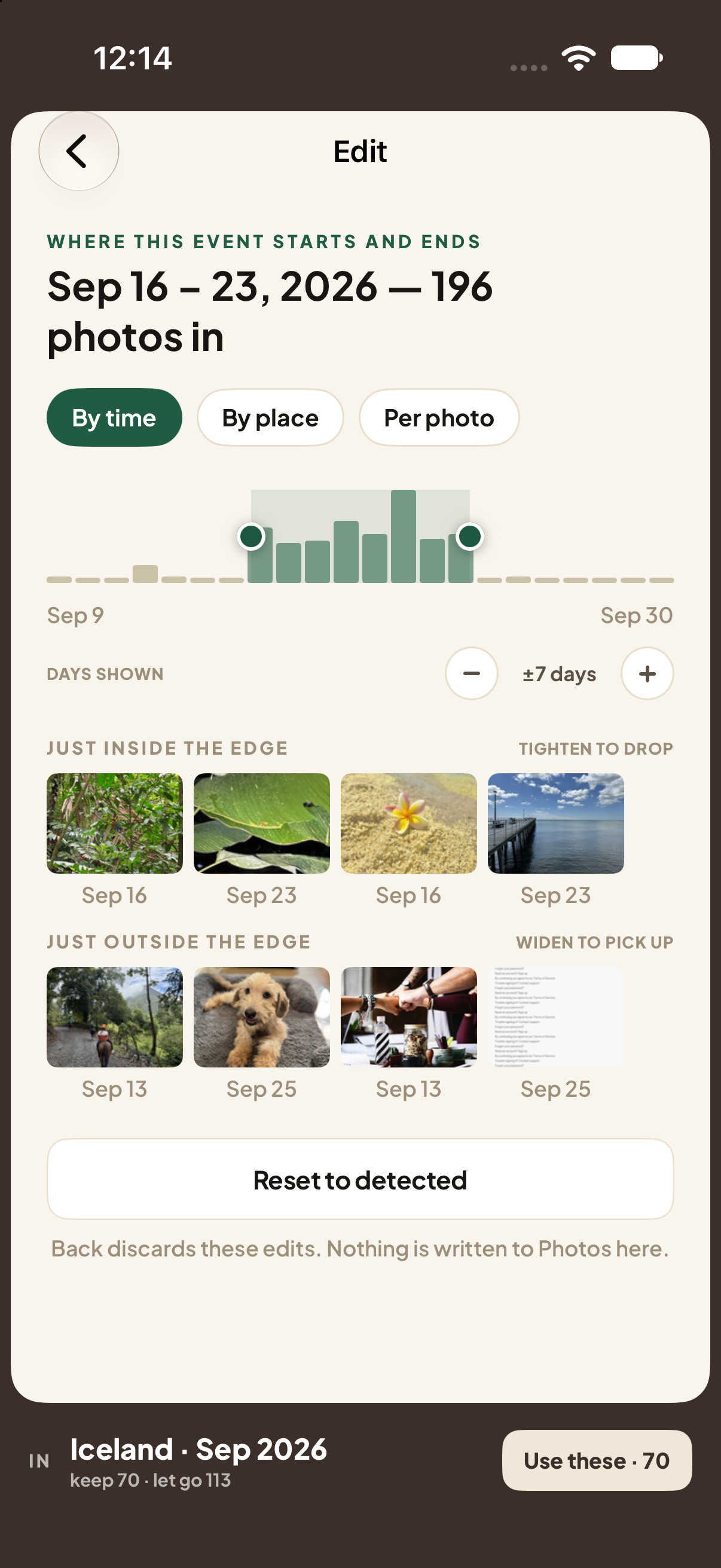
Adjust the boundaries of the event/p>
With event curation, you have two main controls: what’s in the event, and how the items within the event are ranked. Whether it’s a detected or created event, you may want to adjust what images fall in and out of the event. There are three options. You can adjust the start and end dates and decide which images fall just within and outside the bounds of your event. You can do the same thing with location, by dragging the center of the event and how far from that location to include in the event. Finally, for those last few selections, you can decide event membership manually per photo.
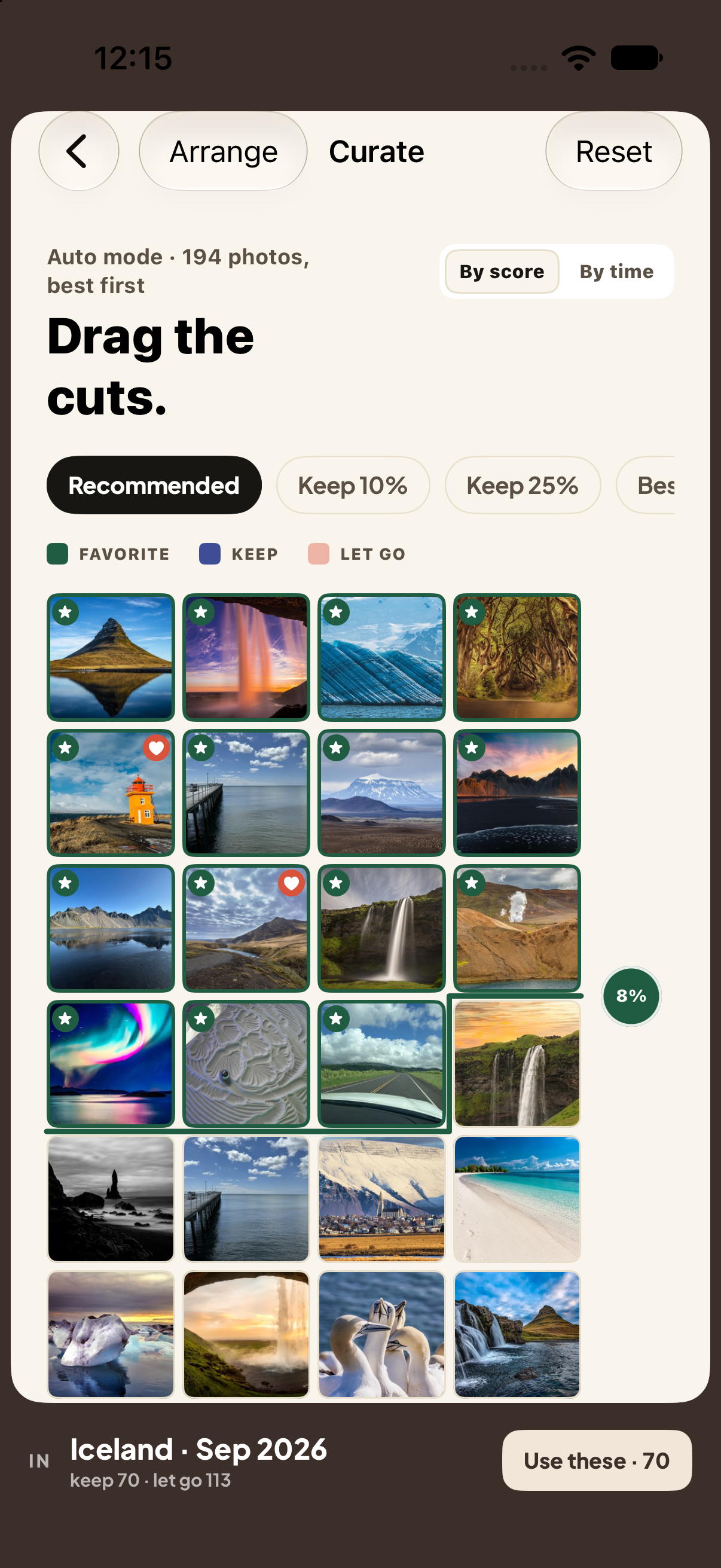
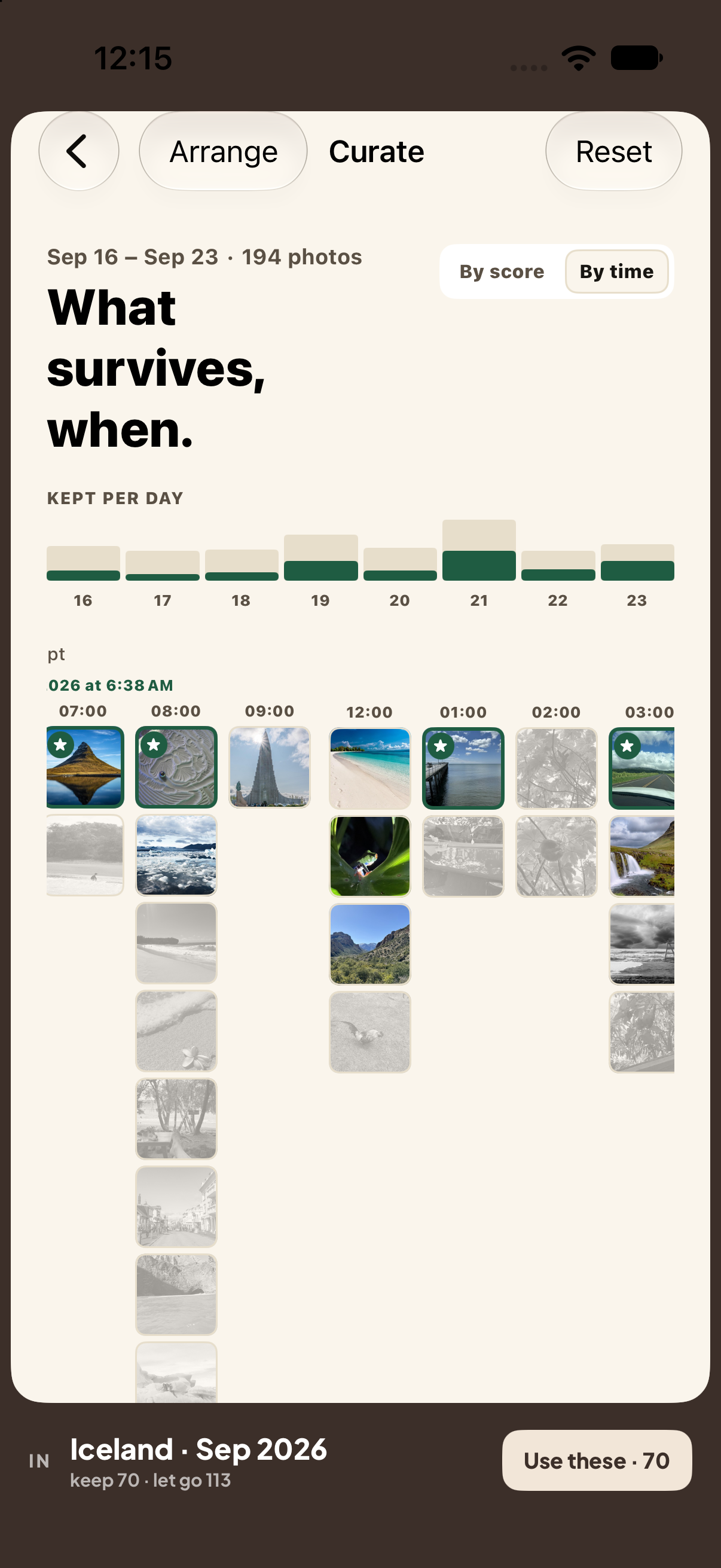
Curate what's in the trip/p>
Once you’ve got your event boundaries set, you can find your faves. There’s both a By Score and By Time view. Use the score view to select the best scoring and lowest scoring photos over the whole trip to clear out. There are a number of presets for Piqt’s Recommended, Keep 10%, Keep 25%, and Best 20. The recommended preset takes your best, but makes sure to not exclude any photos that are your only shots at specific locations or days of your trip, even if they’re not your best photos. Curation by time is great for scrolling through the event by day/hour and making sure you’ve got good coverage of favorites and keepers across the whole trip.
Show it Off
Once you’ve got your event, trip, or even a burst dialed in, you can save it. That persists the event in Piqt, but also saves your changes into an album in Photos. Then you can show it off in Photos just like you would anything else in Photos.
I’ve gone back and refined some of the old trips I haven’t had a chance to review yet and I found it cut down the time significantly. A good rough cut by score, then a final pass in the timeline helped me cut the curation down to minutes instead of hours. I’d love to see how it works for you and what you think.