
Syncing Piqt with CloudKit: Notes from Shipping iCloud Sync
Piqt 1.2 adds opt-in iCloud sync so a second device can skip most of its first scan. CloudKit handles a lot of the heavy lifting, but I had to use CKSyncEngine directly instead of SwiftData's CloudKit mirroring. Here's why and the benefits.
While building Piqt, I’ve probably spent more time on the initial scan than on anything else. For new users, it’s a long chunk of work standing between them and actually using the app. Even with all of my optimization, on a big library that first scan takes a while, and until recently every device you owned did it from scratch. With Piqt coming to the Mac, I set out to fix that.
Piqt is a privacy-focused app that documents every network call it makes, so I had to be sure sync fit that same standard. Luckily, Apple’s own CloudKit is up to the task, and it’s honestly a little slept-on. It gives you secure, private syncing out of the box, with no backend for a developer like me to run and maintain. It’s a win-win, and it’s built into every iCloud account.
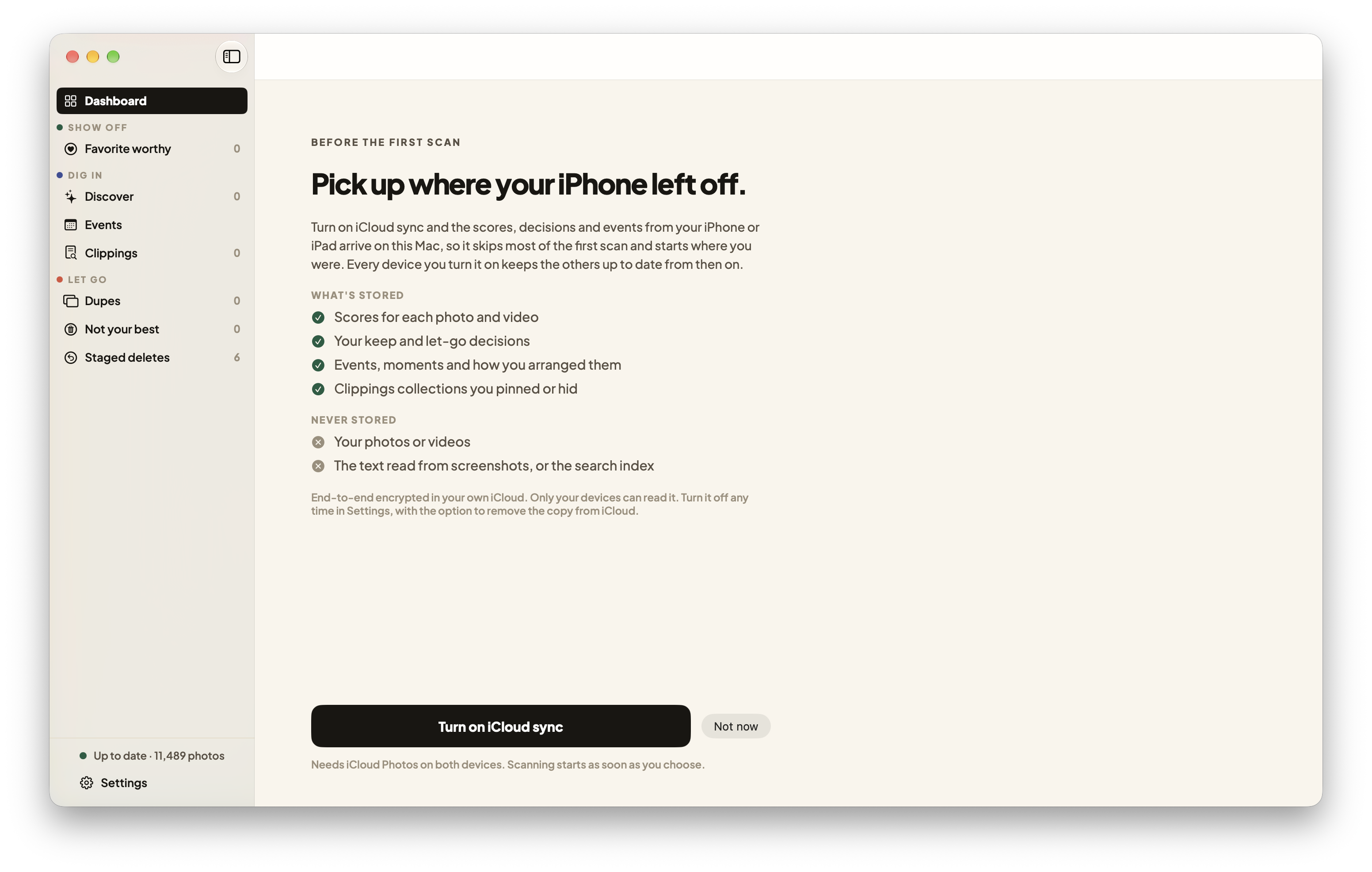
With Piqt Plus, a new Mac offers to pick up where your iPhone left off.
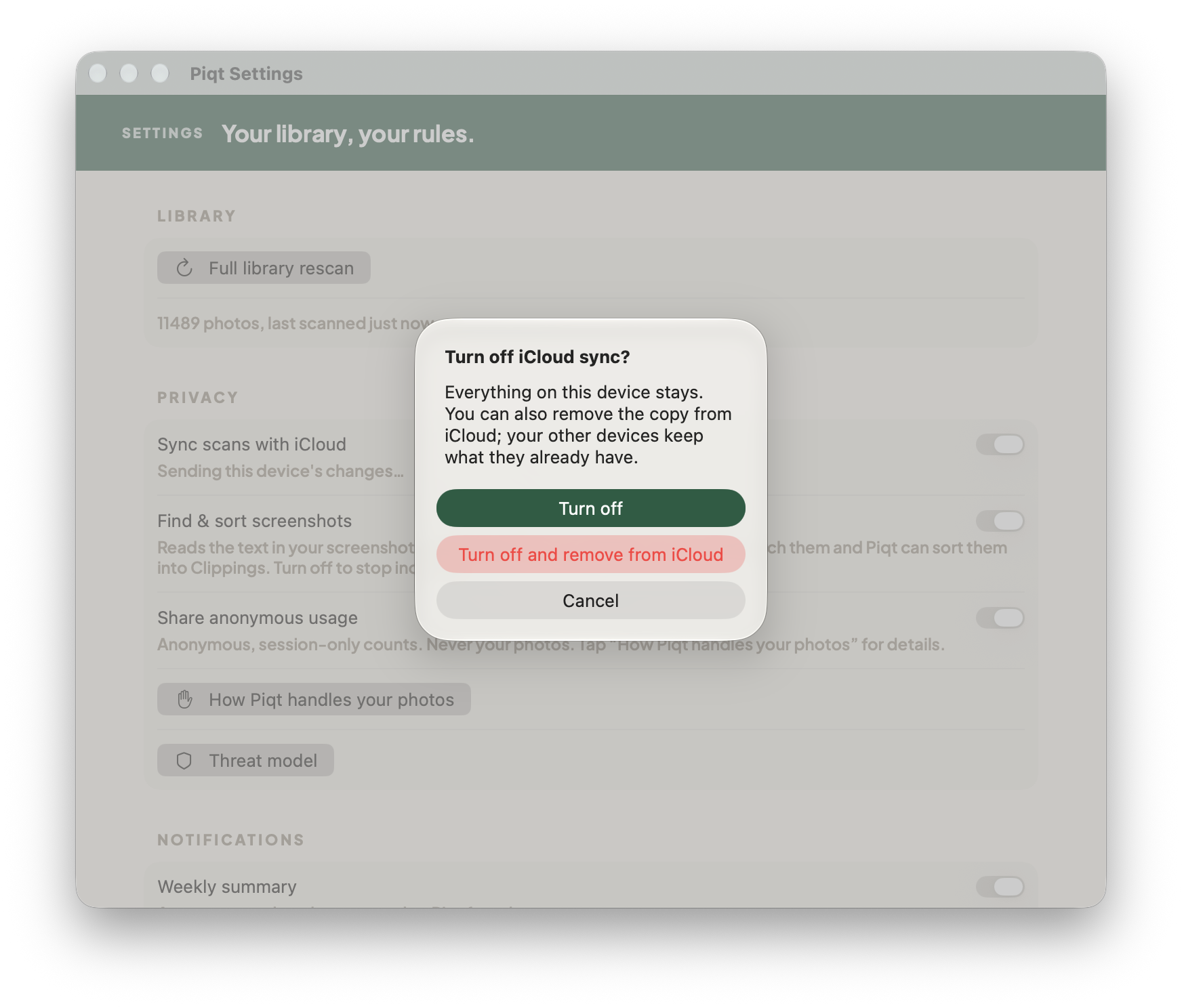
Sync is off by default, so nothing leaves your device until you turn it on. When you do turn it on, your scores, decisions, Clippings pins, events, and settings sync across all of your devices running Piqt. It’s part of Piqt Plus, since it’s an optimization for people who use Piqt on more than one device, and it needs iCloud Photos on each device. Without it, Piqt is still fully functional; you just run the scan on each device separately.
It works great and I’m proud of it, but it wasn’t easy. Getting there took more lessons than I expected, most of them only visible on real hardware.
What is CloudKit?
CloudKit is over 12 years old, and as a user I was never really aware of what it does. As Apple’s answer to general Mobile Backend as a Service (MBaaS), CloudKit provides critical backend services so developers don’t have to build them: data syncing, cloud storage, and change notifications, with no servers to run. Building that yourself means handling authentication, encryption, and scaling, then keeping it all secure for as long as anyone uses your app. Though other MBaaS providers existed before it, Apple built CloudKit directly into its platforms, with a generous free tier, and data stays secure in a user’s private database.
For developers, that means storage, change notifications, and user identity (the Apple Account people are already signed into) with no servers or sign-up flows to build. For users, it means app data lives in your own iCloud account, can be end-to-end encrypted, and can be deleted by you in Settings without asking the developer.
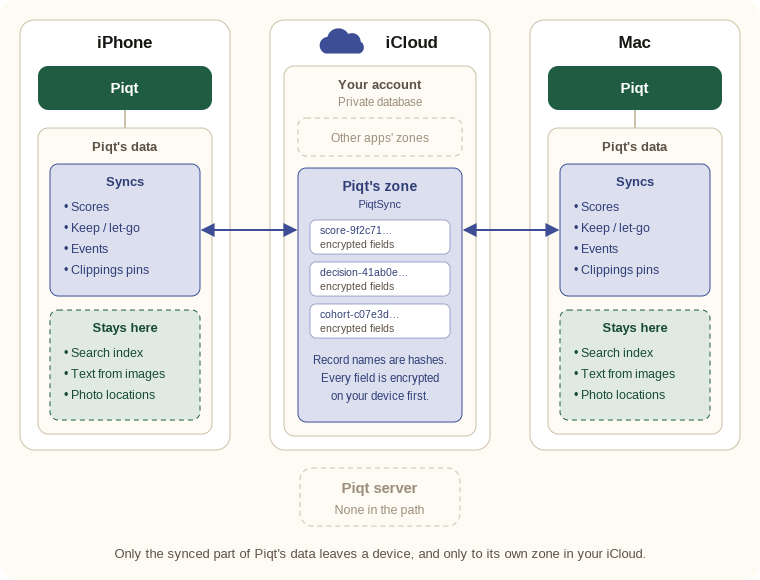
For Piqt, it means your scores, decisions, events, and Clippings pins are end-to-end encrypted in your own iCloud account, while photo locations, text read from your images, and the search index never leave the device that built them. I can’t see any of it. The details are in who can see your synced data, below.
For most apps on Apple platforms, CloudKit is close to a no-brainer, and it let me ship a feature I can stand behind much faster than building my own backend would have. It wasn’t a total easy button, though. The out-of-the-box sync that SwiftData offers didn’t fit Piqt, so I built on CloudKit more directly. The rest of this post is that implementation rabbit hole, if you want to follow me down it.
Why Piqt doesn’t use SwiftData’s CloudKit mirroring
A SwiftData app has two ways to sync through CloudKit. The easy one is mirroring: point your SwiftData store at a CloudKit container, and SwiftData copies every model to iCloud and back with almost no code. The other is to talk to CloudKit yourself. Since iOS 17 that’s much less work than it used to be, because CKSyncEngine handles the plumbing (scheduling, batching, retries, and fetching when another device pushes a change) and leaves you to decide what each record contains.
Piqt stores everything locally in SwiftData, so mirroring was the obvious first choice and would have made this feature even easier. It didn’t fit, though, for three reasons.
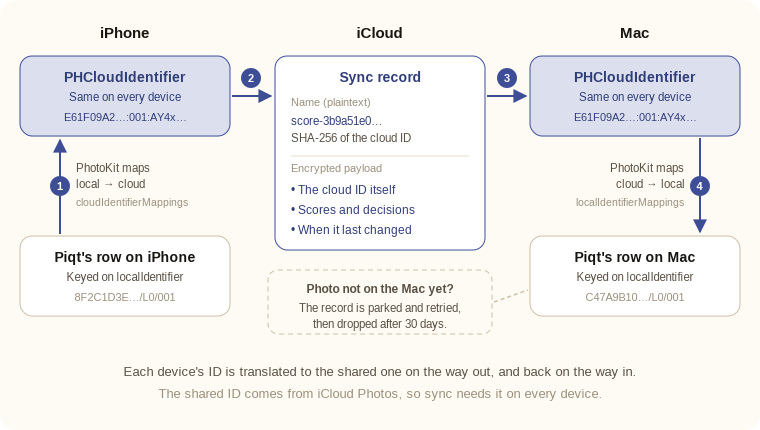
Mirroring copies rows exactly as they are, and Piqt’s rows only make sense on one device. Piqt keys its data on a Photos ID, PHAsset.localIdentifier, and that ID is different on every device. Mirrored as-is, the Piqt database from my iPhone would look like it came from a completely different library on my Mac. Every row needs its ID translated on the way out and on the way in, and mirroring has no hook for that. With CKSyncEngine Piqt builds every record itself, so translation is just part of the process.
Mirroring is set when the store opens. Once a store is configured to mirror, it mirrors for as long as it’s open, so turning sync on or off means reopening the store, which in practice means relaunching the app. Sync in Piqt is opt-in, and I wanted the switch to take effect immediately. With CKSyncEngine, the engine exists only while sync is on.
Mirroring decides what syncs. It uploads every attribute of every model in the store, and encryption is something you opt into per attribute, which is easy to forget on the next field you add. Piqt keeps data that should never leave the device right next to data that should, so I wanted the reverse default: nothing goes up unless I write it into a record, and everything that does is encrypted. Owning the records also means sync lives in one custom zone, so turning sync off can offer to remove the iCloud copy by deleting that zone.
The cost is a lot more code to maintain in Piqt. CKSyncEngine handles scheduling, batching, and retries, but the record mapping and the conflict rules are yours to write.
Mirroring can bite you even if you don’t use it
Skipping mirroring didn’t mean SwiftData stopped caring about CloudKit. When you want to add CloudKit support to your app, you have to enable the iCloud capability in Xcode with CloudKit checked, which adds the com.apple.developer.icloud-services and com.apple.developer.icloud-container-identifiers entitlements. In a SwiftData app, those entitlements on their own change how your stores behave, before a single line of sync code exists. Since the whole point of skipping mirroring was to control what leaves the device, that was the first thing to lock down.
SwiftData’s ModelConfiguration defaults to cloudKitDatabase: .automatic, which means “mirror to CloudKit if the app has the entitlement.” So the day your app gains an iCloud entitlement, SwiftData starts mirroring every store that didn’t opt out. For Piqt that would have included the search index, which holds text read from screenshots and is deliberately excluded from backups.
So the first change shipped a full release ahead of any sync code: every store pins cloudKitDatabase: .none, and a test scans the source and fails on any ModelConfiguration( without it.
It bit me again when the entitlement landed. With the entitlement present, SwiftData validates every .automatic configuration against CloudKit’s schema rules, in-memory ones included, and ten test fixtures failed to open that day. The guard now covers tests and previews with no in-memory exemption.
The general lesson: this setting is per configuration, so a single store you forgot about, even a test fixture, is enough to turn mirroring on. And a test run with the entitlement swapped out can’t catch it, so verify with the real entitlements.
A photo needs one ID across devices
As mentioned above, Piqt’s database rows are keyed on IDs that only apply to the device they came from. Translating one device’s IDs into another’s requires a shared, global ID. This is the core problem for any app that stores data about photos and wants it on more than one device: localIdentifier is a handle into one device’s Photos library, not a stable identity for the photo.
PhotoKit does have a shared ID, PHCloudIdentifier, which you map to and from local identifiers with PHPhotoLibrary’s mapping APIs. It comes from iCloud Photos, which is why sync requires iCloud Photos on each device. You may ask, “Why not just use PHCloudIdentifier from the start?” This is why: Piqt needs to work without iCloud Photos, and it needs to keep working if iCloud Photos is turned off and back on.
Buying a new iPhone around this time turned out to be helpful, too. When I restored my backup onto it, my events and decisions all pointed at the old phone’s IDs, and the app needed a full rescan because none of the local IDs matched anymore. To fix that, Piqt started storing the shared ID in 1.1.1, well before sync shipped in 1.2. Now a restore remaps IDs instead of deleting the rows.
A real gotcha with syncing IDs is that not every ID’s photo is guaranteed to exist on every device at the same time. What if you take a picture on your phone and Piqt scans it before Photos has synced it to your other devices? When Piqt on your other devices receives that record, they now have an ID that may not match to a photo yet. The same happens in reverse when you delete a photo on one device.
The tricky part is that a failed lookup is ambiguous. identifierNotFound can mean the photo was deleted, or that Photos hasn’t finished syncing it yet, which is normal right after a restore. So when most of the store goes missing at once, Piqt quarantines the rows that don’t resolve instead of pruning them. The same happens when Piqt receives a synced row it can’t match to an image. Piqt keeps track of these rows and retries them on every pass for up to 30 days before pruning them.
Who can see your synced data
Syncing means your data leaves the device, so I kept coming back to one question: once it’s in iCloud, who can read it? There are three parties to think about: you, me as the developer, and Apple, which runs the servers. Here’s the short version:
| Your scores, decisions, and events | Which photos and dates they’re about | How many records, and when they change | Tuning settings | |
|---|---|---|---|---|
| You | Yes | Yes | Yes | Yes |
| Me (Piqt) | No | No | No | No |
| Apple | No | No | Yes | Yes |
And here are the decisions that put each one there.
You, the Piqt user, can see all of it. Sync writes to the private CloudKit database in your own Apple Account, in one zone, and your devices decrypt it locally. You can turn sync off at any time, and Piqt can remove the iCloud copy for you by deleting that zone.
I can’t see any of it. This one follows from two decisions. There’s no Piqt server in the path; your devices talk to CloudKit and nothing else. And the data lives in your private database, which developers can’t read. CloudKit’s tools let me see the schema (which record types and fields exist), not the records in your account.
Apple stores it but can’t read the contents. This is where most of the work went, because a plain CloudKit field is protected by encryption Apple manages, and only fields an app explicitly marks as encrypted are guaranteed to be end-to-end. Two decisions close that gap.
First, every field is end-to-end encrypted. Every field goes through CKRecord.encryptedValues, so it’s encrypted on your device with keys in your iCloud Keychain before upload. Because it’s easy to add a field and forget, a Swift Testing test builds a sample of every record type and checks that the encrypted key set is the entire key set:
let all = Set(ck.allKeys())
let encrypted = Set(ck.encryptedValues.allKeys())
#expect(all == encrypted, "\(sample.recordType) wrote a plaintext field: \(all.subtracting(encrypted))")
Second, record names don’t reveal anything. In CloudKit, a record’s name is its key, and it’s stored in plaintext so the server can find the record. Names also have to be deterministic: when two devices score the same photo, they need to write the same record so CloudKit raises a conflict instead of storing two copies. The obvious name is the photo’s cloud ID itself, which would hand Apple a list of exactly which photos you’ve worked on. Instead the name is a SHA-256 of it, and the real ID travels inside the encrypted payload:
static func name(_ type: SyncRecordType, cloudID: String) -> String {
    "\(type.namePrefix)-\(opaque(cloudID))"
}
Moments and Clippings collections are named by a random ID. Trips and time periods are trickier, because their natural name is a date span, and a plain hash wouldn’t help since plausible dates are easy to guess. In 1.2.0 their names contained the start and end dates. Since 1.2.1 they’re named with a keyed hash (HMAC-SHA256) whose key is random, stays on your devices, and syncs only inside an encrypted record, and records saved under the old names are renamed the first time 1.2.1 syncs.
What Apple’s servers can see is that your account has some number of records of six types, and when they change.
There’s one caveat, and I want to state it plainly: your tuning preferences ride iCloud’s key-value store, which is not end-to-end encrypted. That’s a closed list of 14 numeric and boolean settings (scoring weights, curation thresholds, notification toggles). No IDs, no text, no photo data. A test pins the list. Apple could read those settings in principle; I still can’t.
CloudKit gotchas from real devices
I built Piqt’s sync against a fake CloudKit server so I could test my own logic, but a fake only enforces the rules you know to put in it. A handful of CloudKit’s rules only showed up on real hardware. If you’re starting with CKSyncEngine, these are worth knowing up front:
- Don’t call the engine from inside its own callbacks. Even a
Task {}started in a delegate callback counts as inside it. UseTask.detached. - Build saves from the server’s copy. Keep each record’s system fields and save from them, or CloudKit refuses updates to existing records as duplicates.
- One bad record can fail a whole batch. Records that come back with
batchRequestFailedwere just in the wrong batch, so retry them. - Conflicts are yours to resolve. CloudKit doesn’t merge edits. Decide who wins, and make sure a tie doesn’t send two devices into an upload loop.
- Register for remote notifications. Without silent pushes, a device only sees other devices’ changes when it happens to fetch on its own.
Try it
Sync is in Piqt 1.2 on iPhone, iPad, and Mac (macOS 15 or later), as part of Piqt Plus. The release post covers what the Mac app does, and if you want the SwiftUI side of the Mac work, I wrote that up in Bringing Piqt to the Mac.